Protect a PDF with a password before you send it to a client
A contract, an invoice, a payroll? Add a password to the file before it lands in someone else's inbox. And when you get a PDF with a password, you can remove or change it in a few clicks.
No account and no upload, and the original stays untouched.
From file to password in three steps
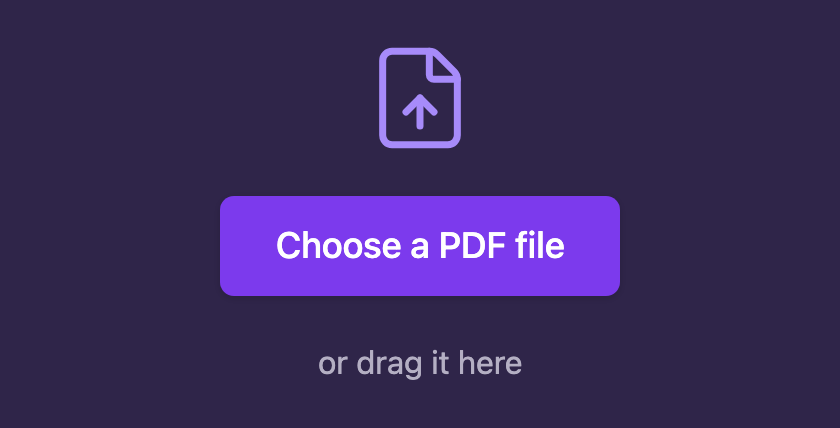
Pick a file
Click “Choose a PDF file” or simply drag the document into the app window.
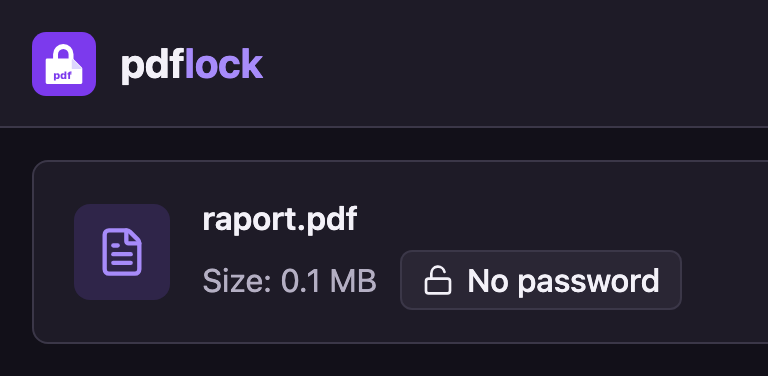
Think of a password
Type it twice in case of a typo. The meter tells you right away whether it is easy to guess.
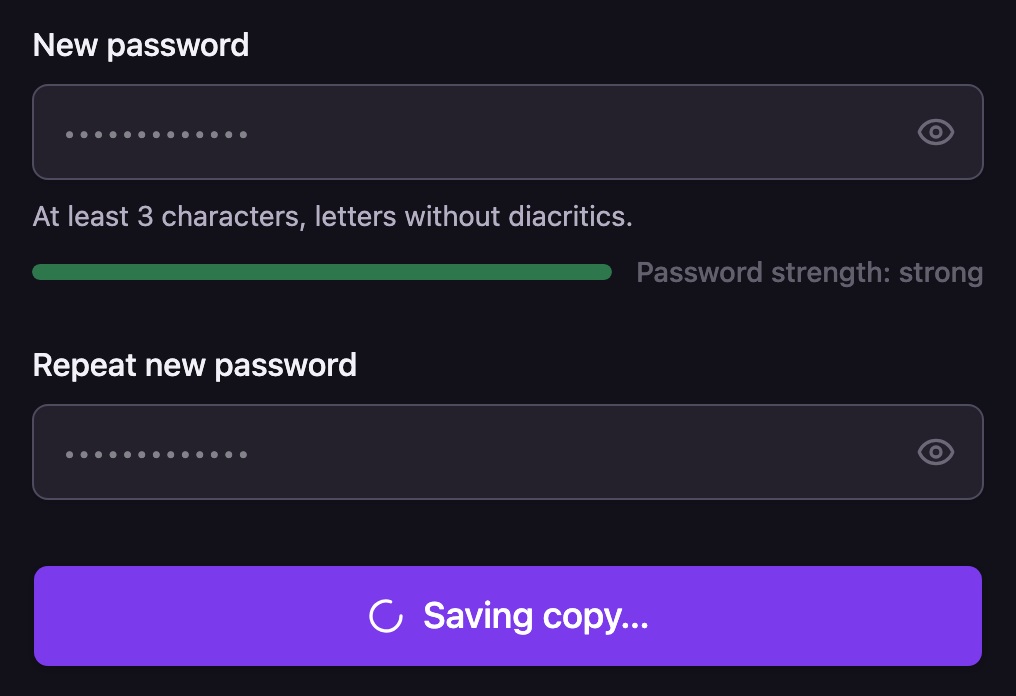
Save a copy
Done. You get a copy with a password, and the original stays where it was.
What else can you do with pdflock?
The original stays untouched
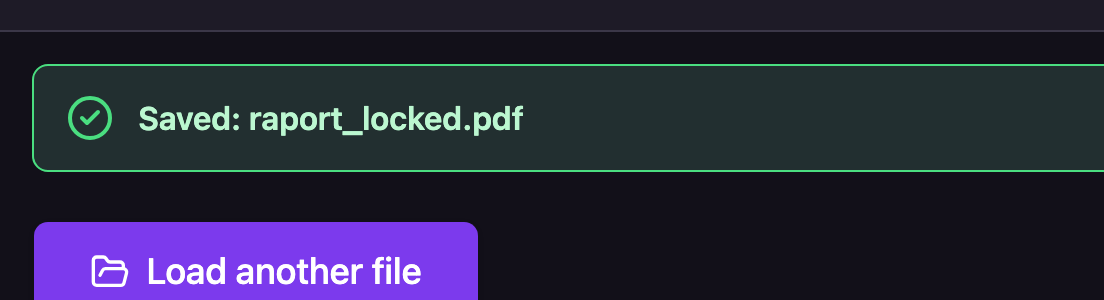
pdflock does not change your file. It saves a copy next to it, so you always have the original at hand.
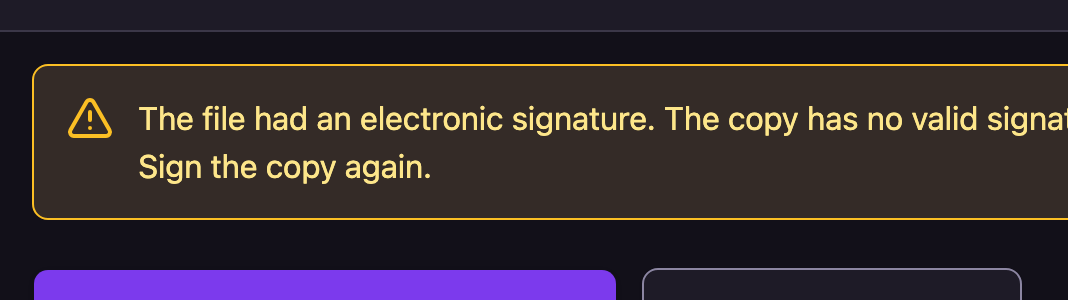
A signature won't silently disappear
When a document has an electronic signature, pdflock warns you that the copy needs to be signed again.
In Polish and English
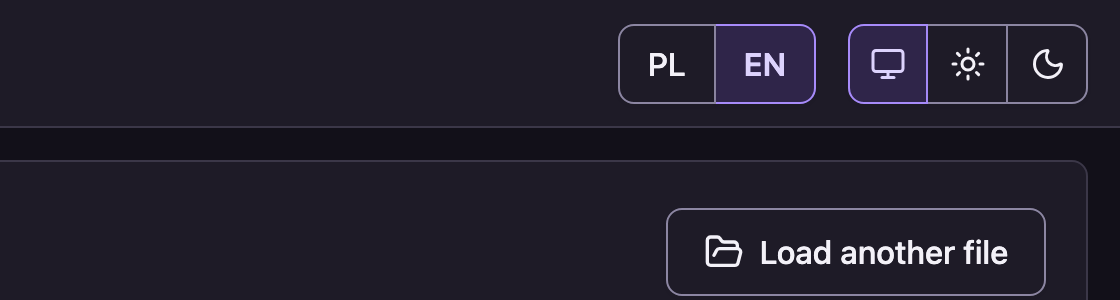
Switch the language with one click in the corner of the window. That is also where you choose light or dark mode.
Your file stays with you
pdflock does everything on your computer. A file with client data never goes online, not even for a second.
The file goes nowhere
You add the password on your own computer, without sending the document anywhere.
No accounts
No sign-up and no extra login to remember.
No need to ask IT
On Windows you install the app on your own account, without administrator rights.
Frequently asked questions
Before you install the app, check whether your question is answered here.
Does my file go online?
No. Everything happens on your computer, the file never leaves it.
What about the original?
It stays exactly as it was. pdflock always saves a copy.
I forgot the password to a file. Can I recover it?
Unfortunately not. pdflock does not know or store your passwords, so keep them somewhere safe.
The file has an electronic signature. What then?
Adding or changing a password invalidates the signature, so pdflock warns you before saving. The copy needs to be signed again.
Why does the system warn me the first time I open the app?
pdflock is free and has no paid publisher signature, so the system asks whether you trust it. On Windows, in the “Windows protected your PC” window, click “More info” and then “Run anyway”; your antivirus may still scan the file. On macOS, in the window that says “pdflock” Not Opened, click “Done”, open System Settings → Privacy & Security and click “Open Anyway”. You only do this once.
Download pdflock
Installation takes a moment, and you can protect your first file right after.
The system may warn you the first time you open the app, see the questions for how to get past it.